

1. Create a workspace
After signing in, create a workspace for your team, for example Studio North. If you already belong to a workspace, use the workspace menu at the top of the sidebar to switch to it. A workspace is the boundary for membership and permissions. Separate teams that should not share access belong in separate workspaces.2. Add a project
Choose Add project in the sidebar and create Website launch. Open the project, then choose Tasks. Board and List are two views of the same tasks.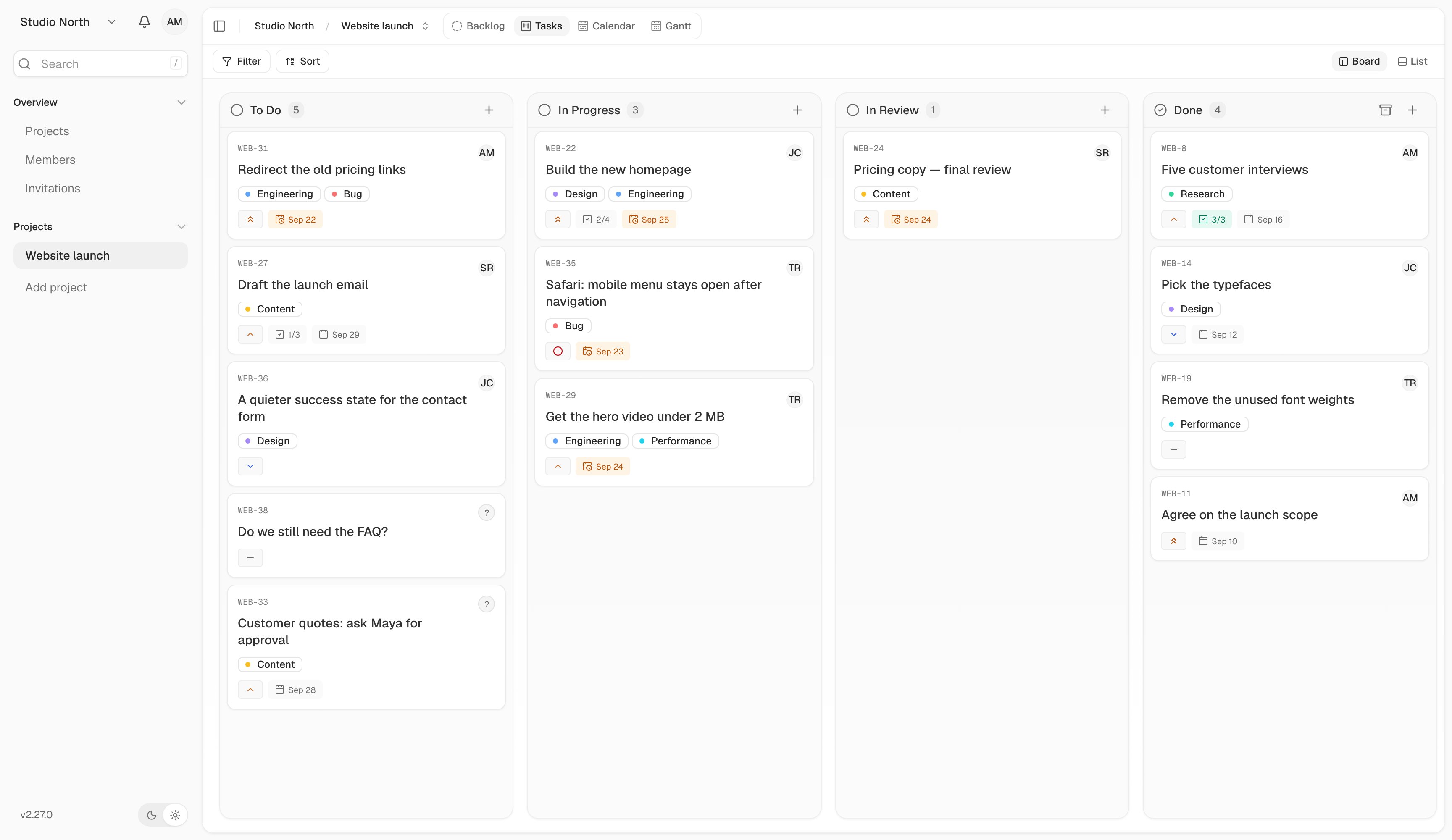
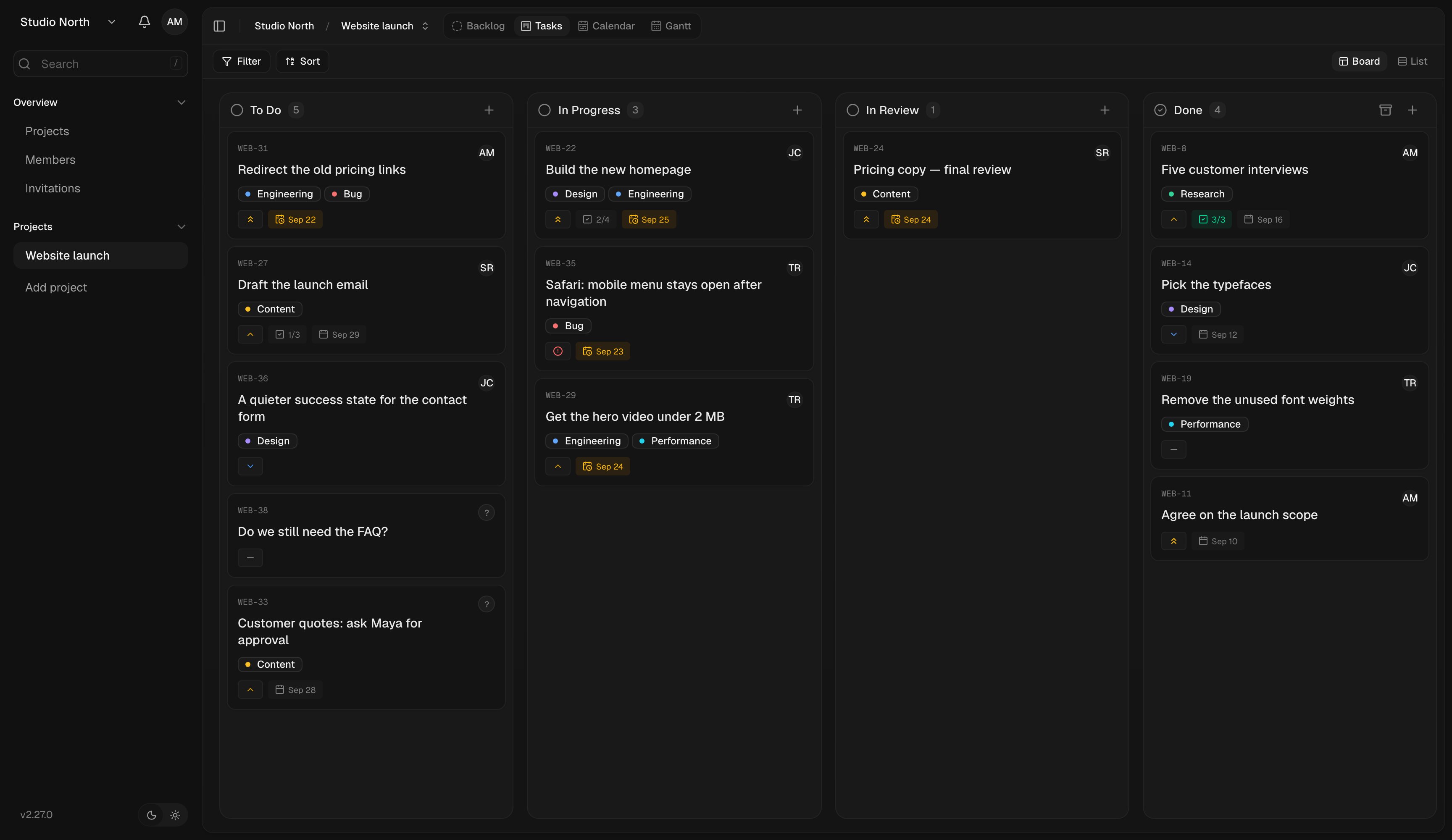
Website launch, with work grouped into To Do, In Progress, In Review, and Done.
3. Write the first task
Use the + button in a board column to add a task. Call it Build the new homepage, then open it. Add a short description of what needs to be true when the task is finished. For example:Publish the new homepage with approved copy, a working contact link, and a layout checked on mobile.Use a checklist for the smaller steps. Set a due date if there is a real deadline, and add a label such as Design if it will help you find related work.
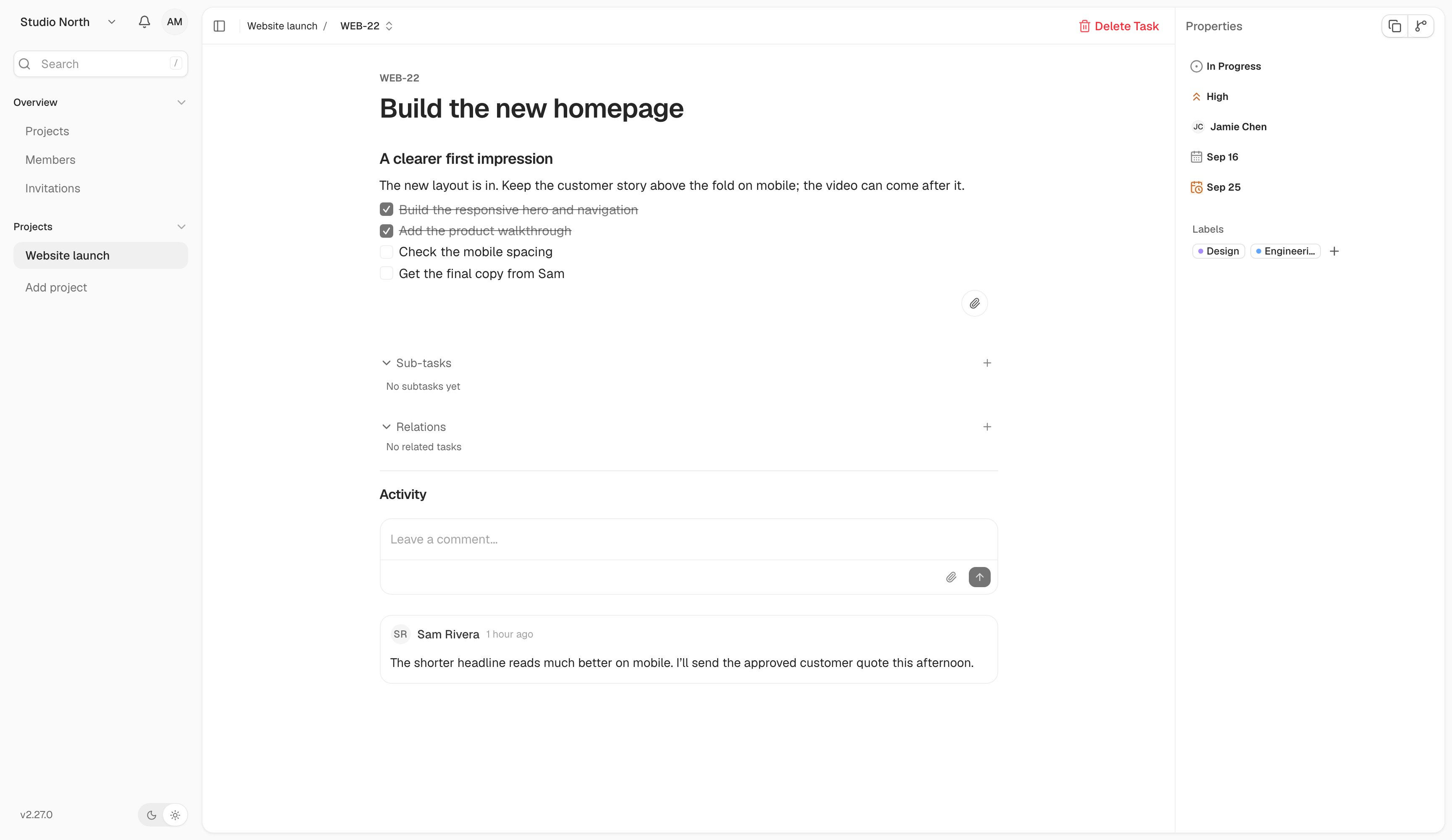
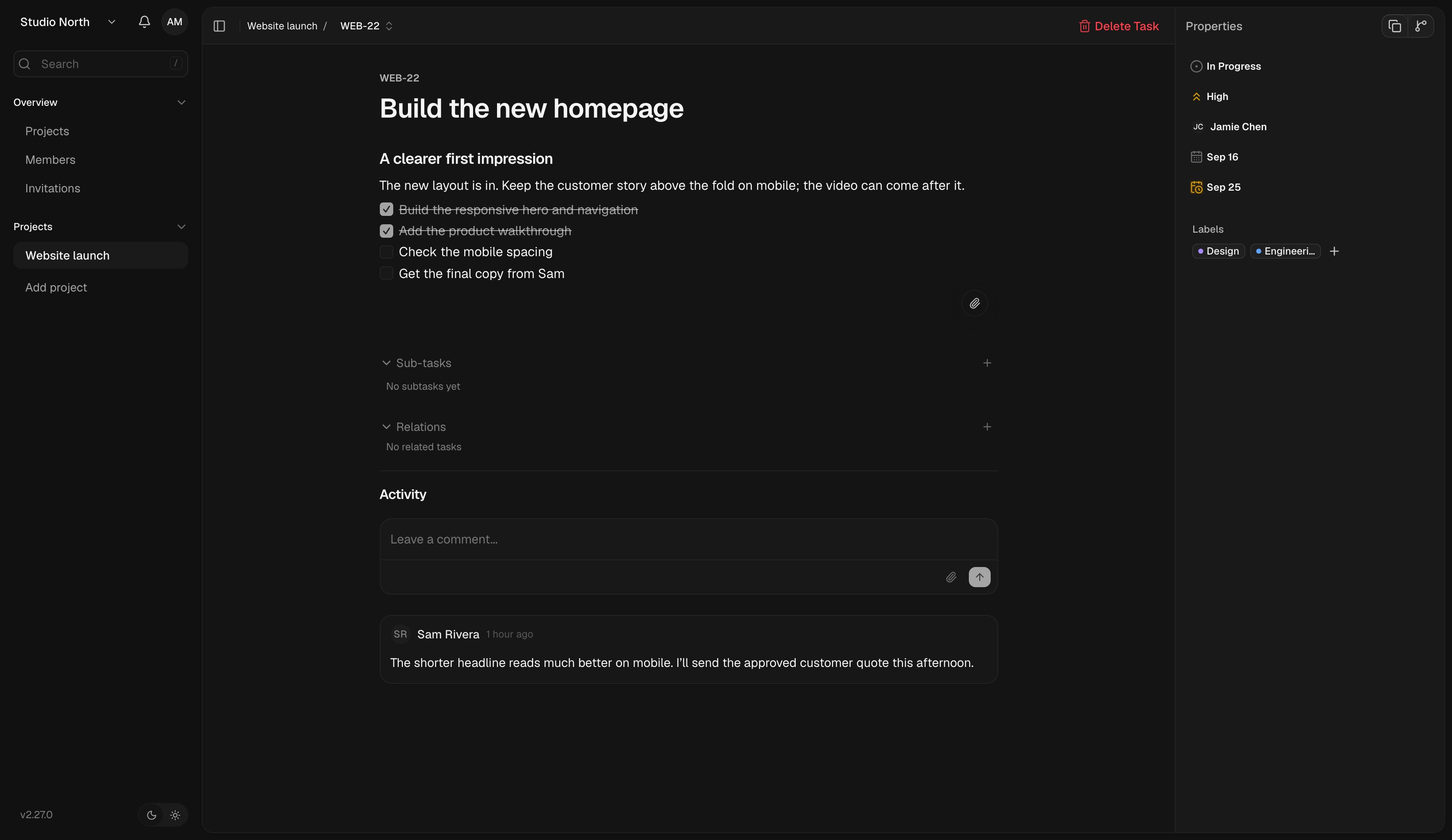
An open task with a description, checklist, assignee, dates, labels, and comments.
4. Invite a teammate
Open Members in the workspace sidebar and choose Invite member. Enter your teammate’s email address, then copy the invitation link and share it with them. If your instance has email configured, Kaneo can also deliver the invitation by email. Your teammate opens the link, signs in with the invited email address, and accepts. Return to the task and choose an assignee. If that control is unavailable, ask a workspace admin to check your role. See Members and roles for pending invitations and access changes.5. Move the work forward
Drag the task into In Progress when work starts. Add questions and updates in the task’s comments so the context stays with the work. When the work is finished, move it to the project’s done column. If it needs another pass, move it back to an active column. You now have a shared project with a task your team can follow from start to finish.Work with tasks
Explore Board, List, filters, and task details.
Plan upcoming work
Keep ideas in the backlog until they are ready.