Open Settings → Projects, select a project, and choose Workflow. You need permission to manage the project to change its columns.

Change the columns

In Columns, add a stage with Add column, click a name to rename it, click its icon to choose another, or drag a row into a different order. Start with the few stages your team actually uses, such as To Do → In Progress → Review → Done. Turn on Done for a column when tasks in it should count as complete. A column’s name alone does not define completion.
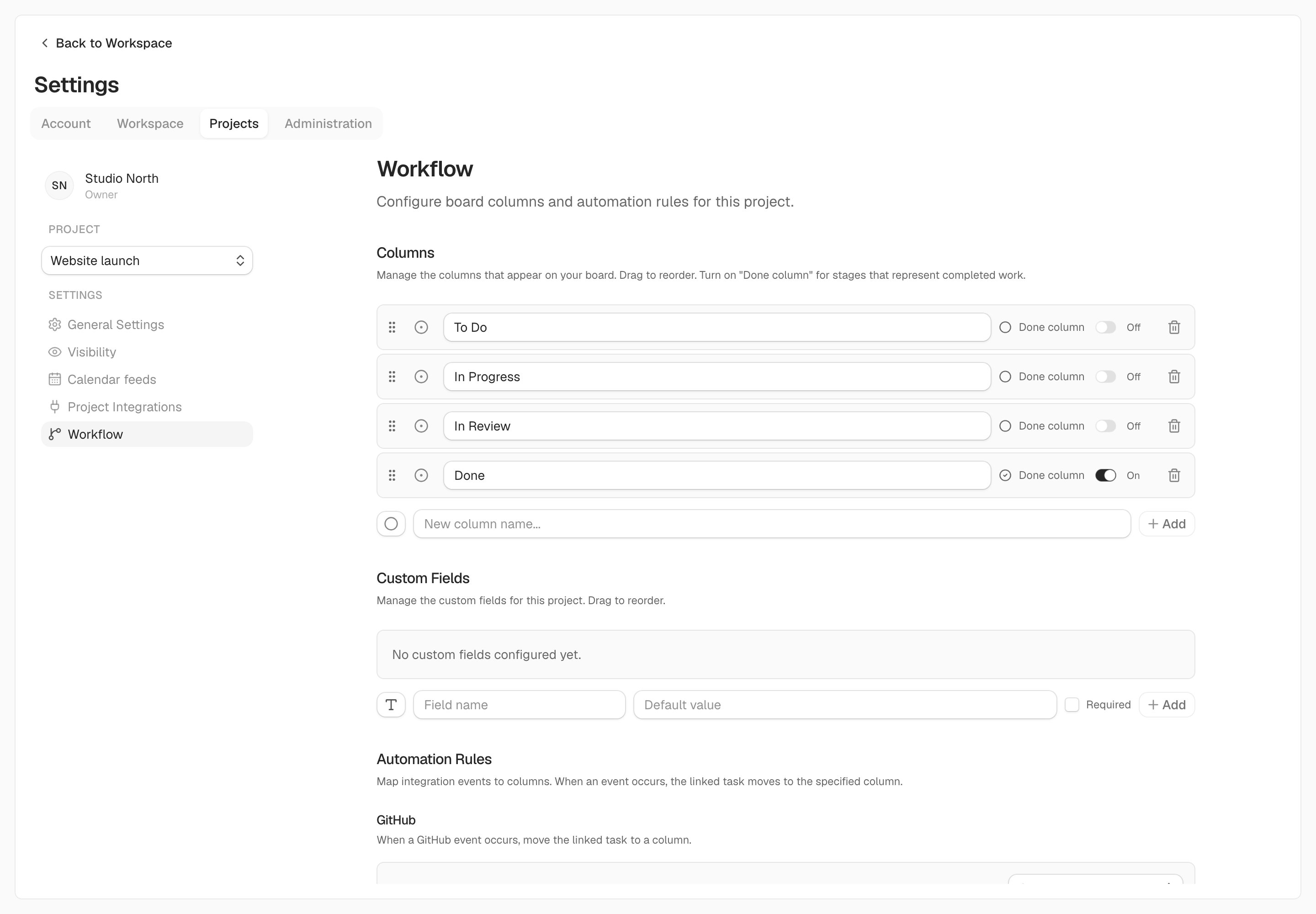
Project workflow settings contain columns and automations.Project workflow settings contain columns and automations.

Project workflow settings contain columns and automations.

Kaneo asks before deleting a column and refuses to delete one that still contains tasks. Move those tasks into another column first and check any automations that target it. Changes apply to the whole project, so let your teammates know before reorganizing an active board.

Set up custom fields

Open Custom fields under the same project when tasks need another piece of structured information. Select New field, choose text, number, date, dropdown, or checkbox, and give it a clear name. For a dropdown, add the available options, and turn on Allow several if a task can pick more than one. Turn on Required to give every task a value; a required field needs a default, which Kaneo also fills in on existing tasks that have none. Drag fields to change their order. Task details list them in that order under Fields. To change a field, open its menu and select Edit. You can rename it, change its default, make it required, and add or reorder options. The type cannot change after a field is created, except switching a dropdown between one and several options. Kaneo refuses to remove or rename an option that tasks still use, and to turn off Allow several while a task has more than one option selected, so existing values never change silently. Deleting a field removes it and its value from every task.

Move tasks automatically

Under Automations, each connected GitHub, Gitea, or GitLab repository has its own list of events. Choose a target column for each event you want to use. For example, a branch push can move work to In Progress, and a merged pull request can move it to Done. Choose Don’t move to stop using an event. Connect the repository first through Integrations. Test one event with a task whose branch name matches the integration’s pattern, then confirm the task moves to the expected column. Disconnect the repository integration if you want to stop using that connection entirely. Return to Board and List to work with the updated columns.