

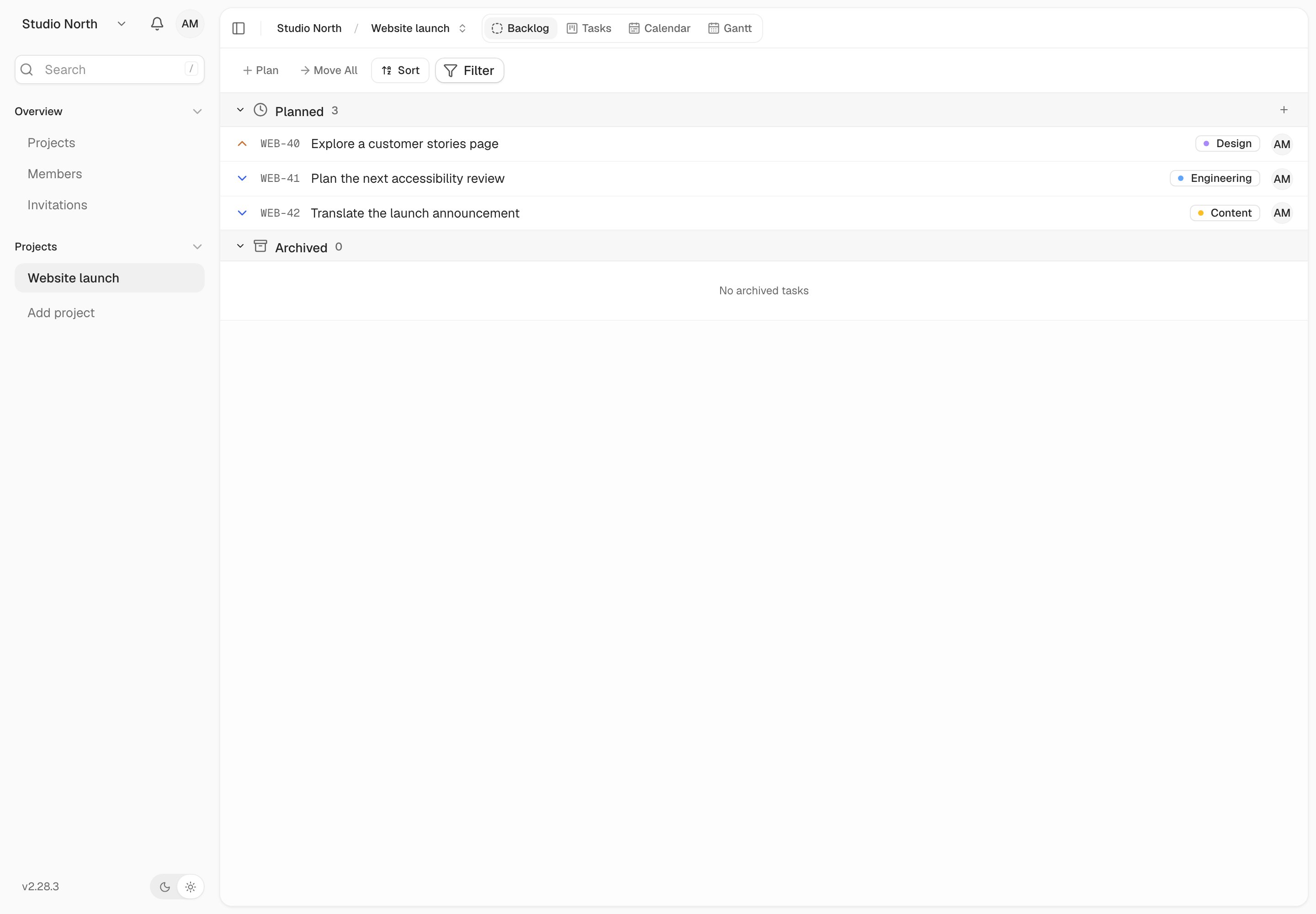
Backlog keeps planned work together until you move it to an active column.
Add and prepare work
Choose Plan to create a task in the backlog, then open it to add context. Set a priority or label if that will help you decide what to work on next. An idea does not need an assignee or due date just to be worth keeping. Before moving it into active work, write down the expected outcome and any missing information. For example, “Update pricing” might become “Publish the approved annual pricing on the website.”Move a task into active work
Open the task and change its status to a board column, such as To Do. It is now part of the project’s active task view. To return an active task to the backlog, right-click its board card and choose Mark as planned. Use Filter to narrow the list by assignee, priority, labels, due date, or custom fields when reviewing upcoming work. The backlog shares the project’s filters, except status filters, which only apply to board columns.The backlog uses the Planned status. A board column you name “Backlog” is still a normal board column, so it does not replace this view.