

1. Choose which events you want
Use the event preferences at the top of the page to control task assignments, comments and mentions, status changes, and due-date reminders. These categories are enabled by default. Turning one off stops new notifications in that category, including in the Kaneo inbox. Due-date reminders default to one day before the deadline. Choose a whole number of hours (1–720) or days (1–30), then save. External delivery still needs a channel and workspace rule below.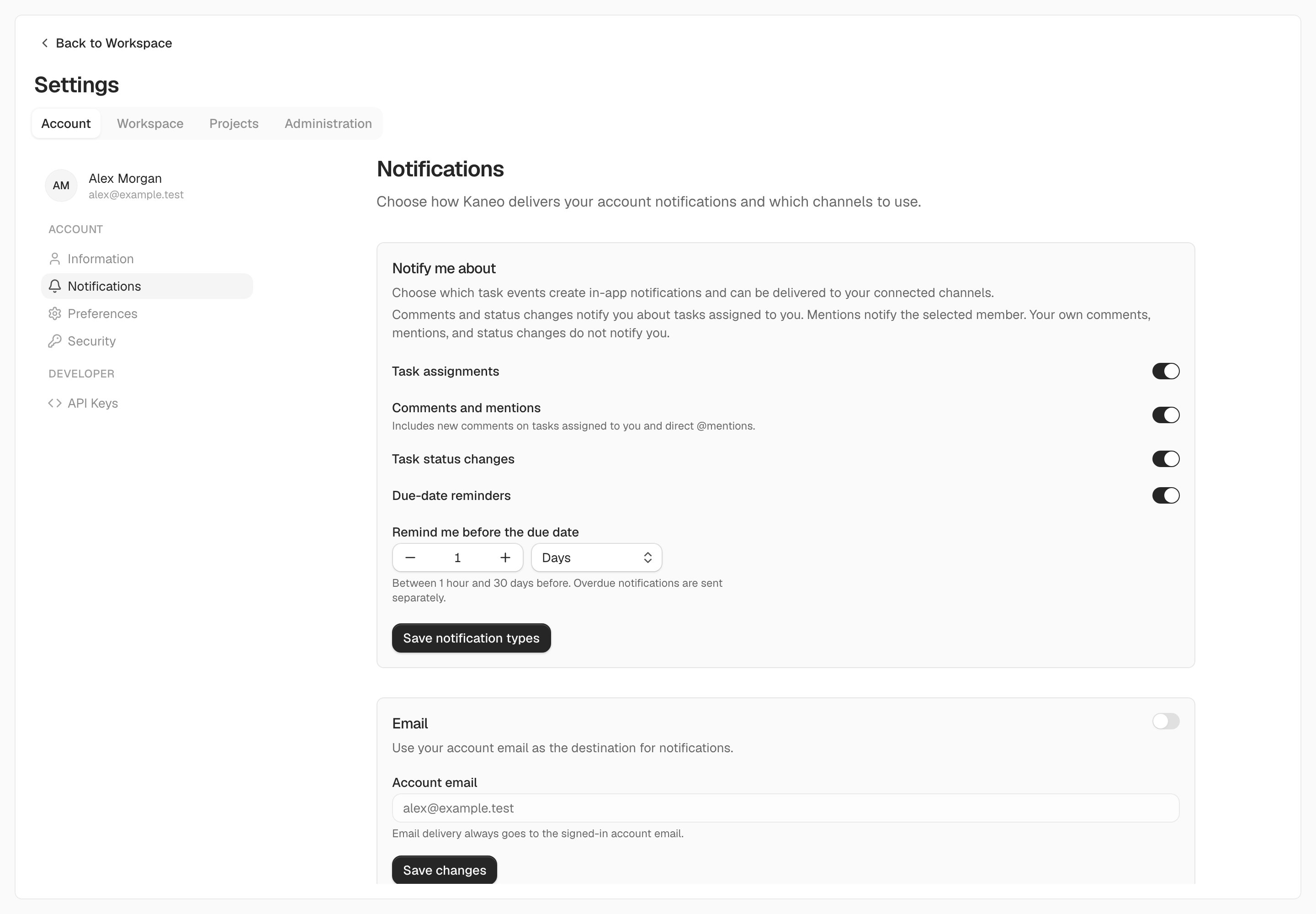
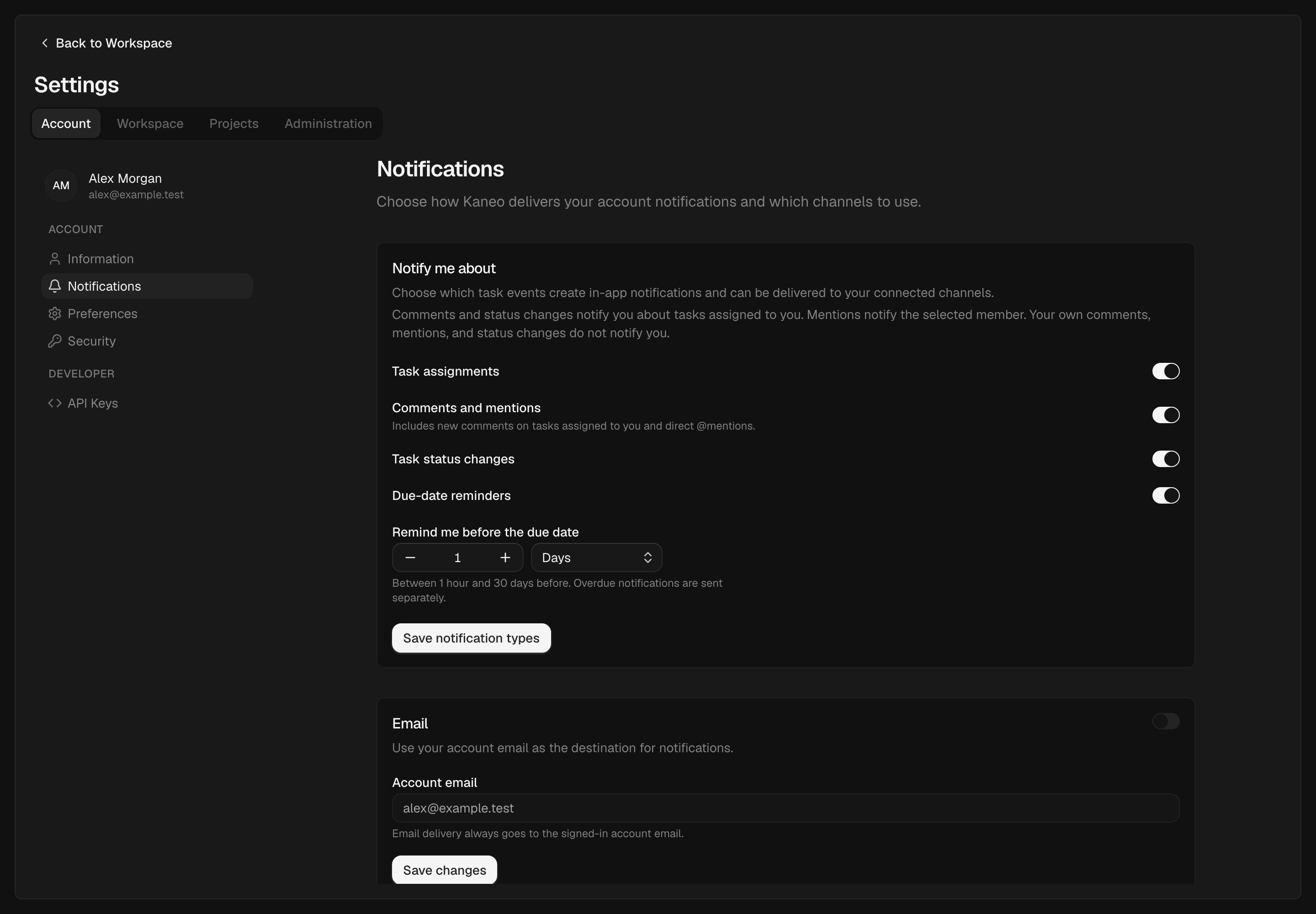
Choose notification categories and how early Kaneo should remind you about due dates.
2. Connect a channel
For channels with tokens or signing secrets, the instance operator must first set
NOTIFICATION_SECRET_ENCRYPTION_KEY. Configure and enable a channel on this page. Use the Gotify base URL, such as https://gotify.example.com, without adding its message API path.
For a signed custom webhook, Kaneo sends X-Kaneo-Signature as the HMAC-SHA256 hex digest of the raw JSON request body. Your receiver can verify it with the shared secret.
3. Choose the workspaces and projects
Below the channel settings, add or edit a workspace delivery rule:- Make the rule active.
- Enable the channels you want to use for that workspace.
- Choose All projects or Selected projects.
- Save your changes.
Pause or stop delivery
Pause the workspace rule to stop forwarding that workspace’s notifications. Disable a channel on the rule to stop only that destination. Disable the account-level channel to stop using it across your rules. Changes apply to new notifications. Kaneo does not replay older inbox items when you enable delivery again. If delivery fails, the notification still remains in your Kaneo inbox.Which notifications are forwarded?
Forwarding uses the notifications Kaneo creates for your account and respects your event preferences. A project event does not automatically notify every member. Use a project integration when you want a shared feed of project activity. A notification without a workspace or project context may stay in the inbox only.If a channel cannot be saved or delivery fails
Check the channel is enabled, the workspace rule is active, and the project is included. For email, ask the instance operator to check SMTP and its delivery logs. HTTP destinations must be reachable from the Kaneo API. By default, local and private network addresses are rejected. On a trusted private deployment, an operator can choose to allow them withKANEO_ALLOW_PRIVATE_WEBHOOK_DESTINATIONS; this changes a server-side security boundary, not an account preference.
If a notification appears in the inbox but never reaches your destination, check the destination service’s logs and credentials next.