

Invite a teammate
- Open Members in the workspace sidebar.
- Choose Invite member and enter their email address.
- Under Project access, keep All projects or choose Selected projects and pick the projects they need. See Limit a member to selected projects.
- Create the invitation, then copy the link shown in the dialog.
- Share the link with that person. With SMTP configured, the instance can also send an invitation email.
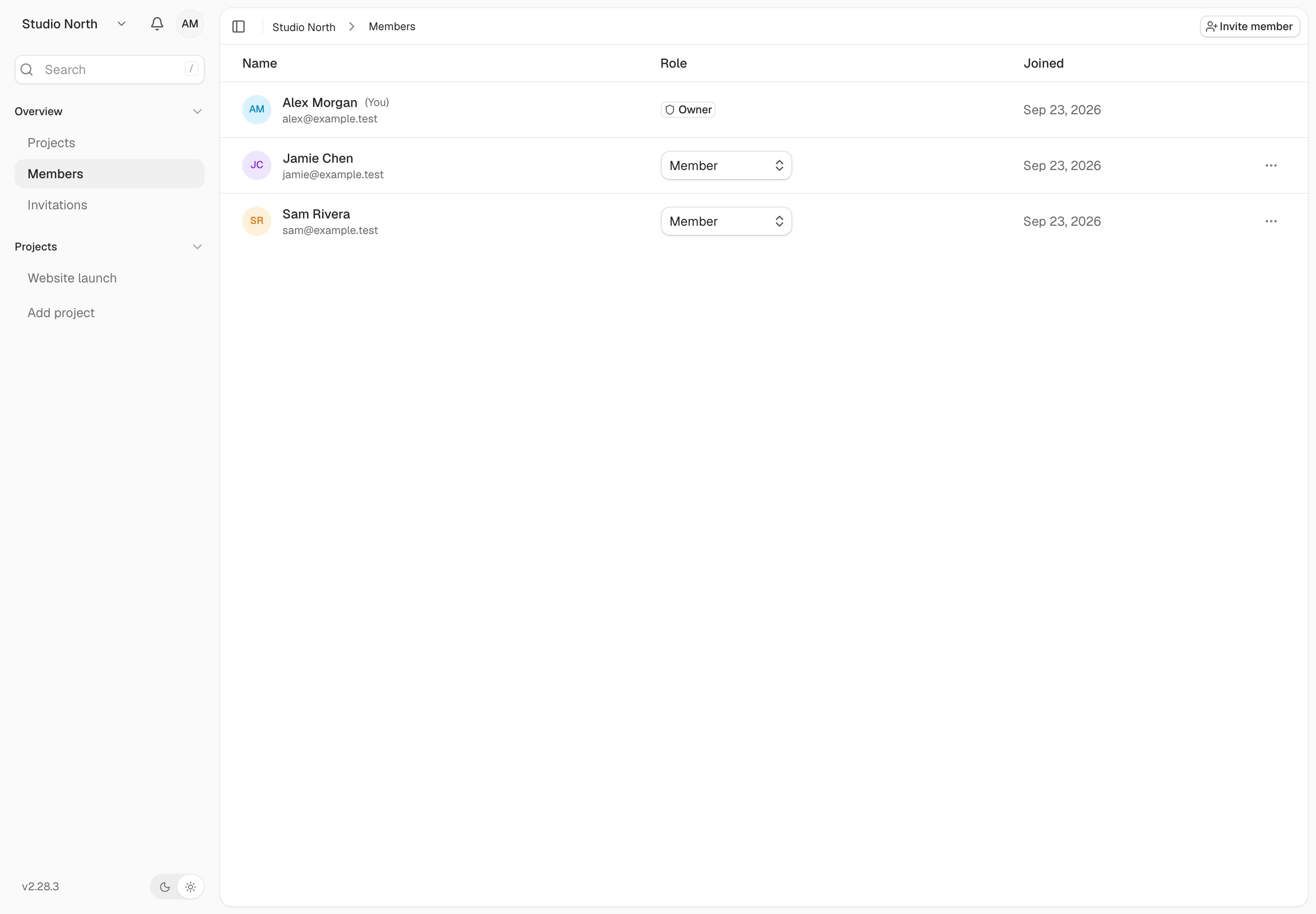
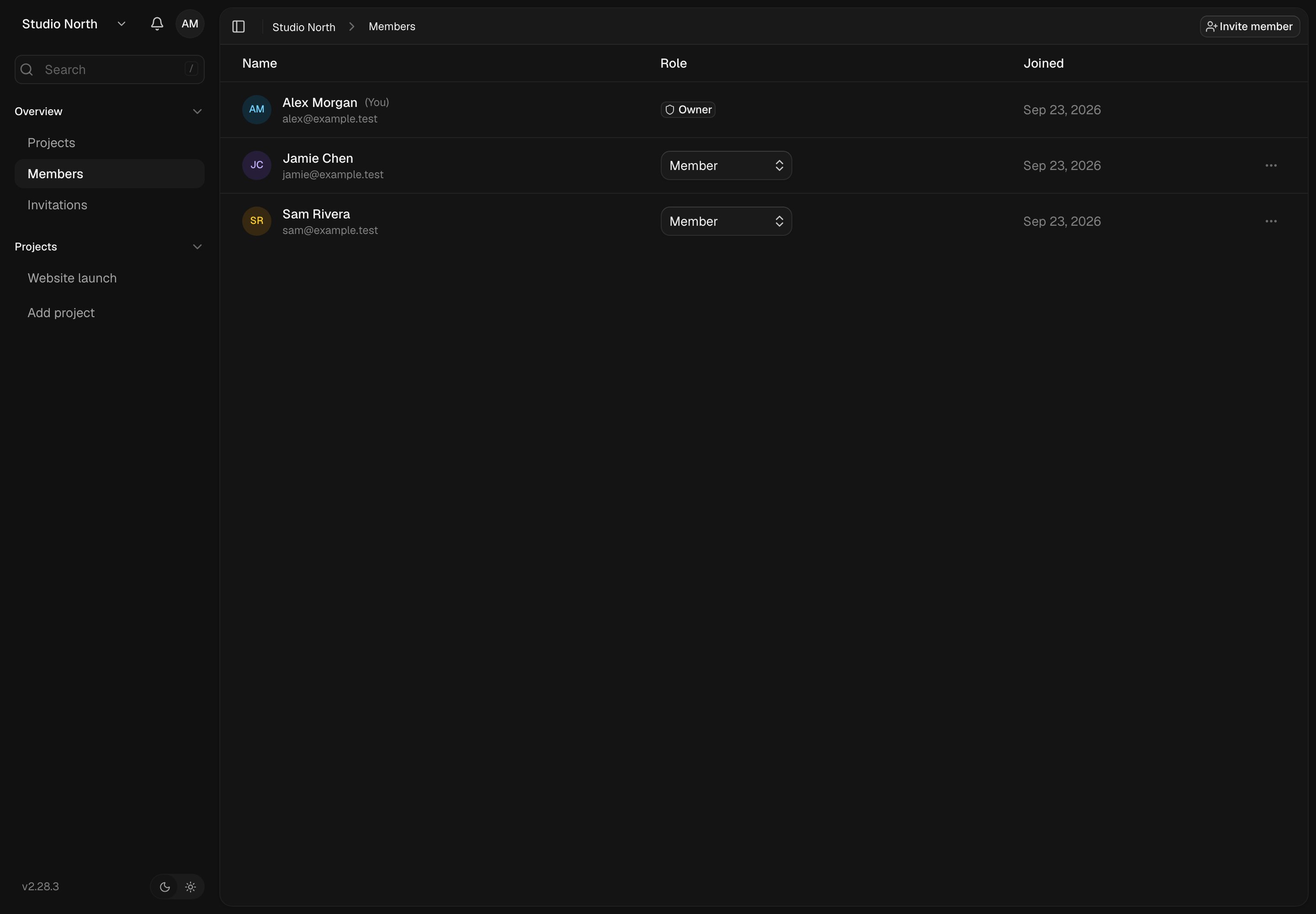
The Members page shows workspace members, their roles, and invitation controls.
Find or cancel a pending invitation
Pending invitations appear in the members table. Use the invitation’s menu to copy its link again or cancel it. Cancel an invitation sent to the wrong address. If it has expired, create a new invitation. If someone sees an email mismatch, ask them to sign in with the address you invited. On an instance without email delivery, share the invitation link yourself. If email delivery reports an error, check the pending invitation before retrying; the operator may need to fix SMTP.Choose a role
Use the role selector next to a member in Members. You need permission to change roles; you cannot change your own role through that selector. These are the starting permissions. An administrator can edit the Viewer, Member, and Admin roles, so your workspace may differ.
Task assignment and deletion are separate permissions. A member who can edit a task may still be unable to assign or delete it.
Limit a member to selected projects
By default, members can open every project in the workspace, including projects created later. To invite a client or contractor without showing them unrelated work, limit them to selected projects:- Open Members in the workspace sidebar.
- In the Projects column, choose the member’s current access, for example All projects.
- Choose Selected projects, tick the projects they should see, and choose Save.
- Owners always have access to every project.
- You need permission to change roles, and you can’t change your own project access.
- If your own access is limited, you can only give others access to projects you can open, and you can’t give anyone All projects or limit someone who has it. Projects you can’t open stay as they are on the member you edit.
- Tasks can only be assigned to people who can see the project. Limiting someone unassigns them from tasks in the projects they lose, and moving a task into a project its assignee can’t see unassigns it.
Edit roles or create a custom role
Open Settings → Workspace → Roles to inspect the permissions behind a role. If you have role-management permission, you can change the editable roles or create a custom one. Give people the access their work needs. For example, a reviewer may only need to read tasks, while a project lead may need to assign and delete them. The owner role is fixed.Remove a member or transfer ownership
In Members, use the member’s menu to remove them and confirm the action. They lose membership in this workspace, but their Kaneo account is not deleted. To change the owner, use Settings → Workspace → General → Transfer ownership. Transfer ownership before leaving or deleting your account if you are the only owner of a shared workspace. If the owner has already left, an instance administrator can transfer ownership for them. See Administer users and workspaces.Keep the conversation with the work
Open a task to leave a comment, update its description, or choose the next assignee.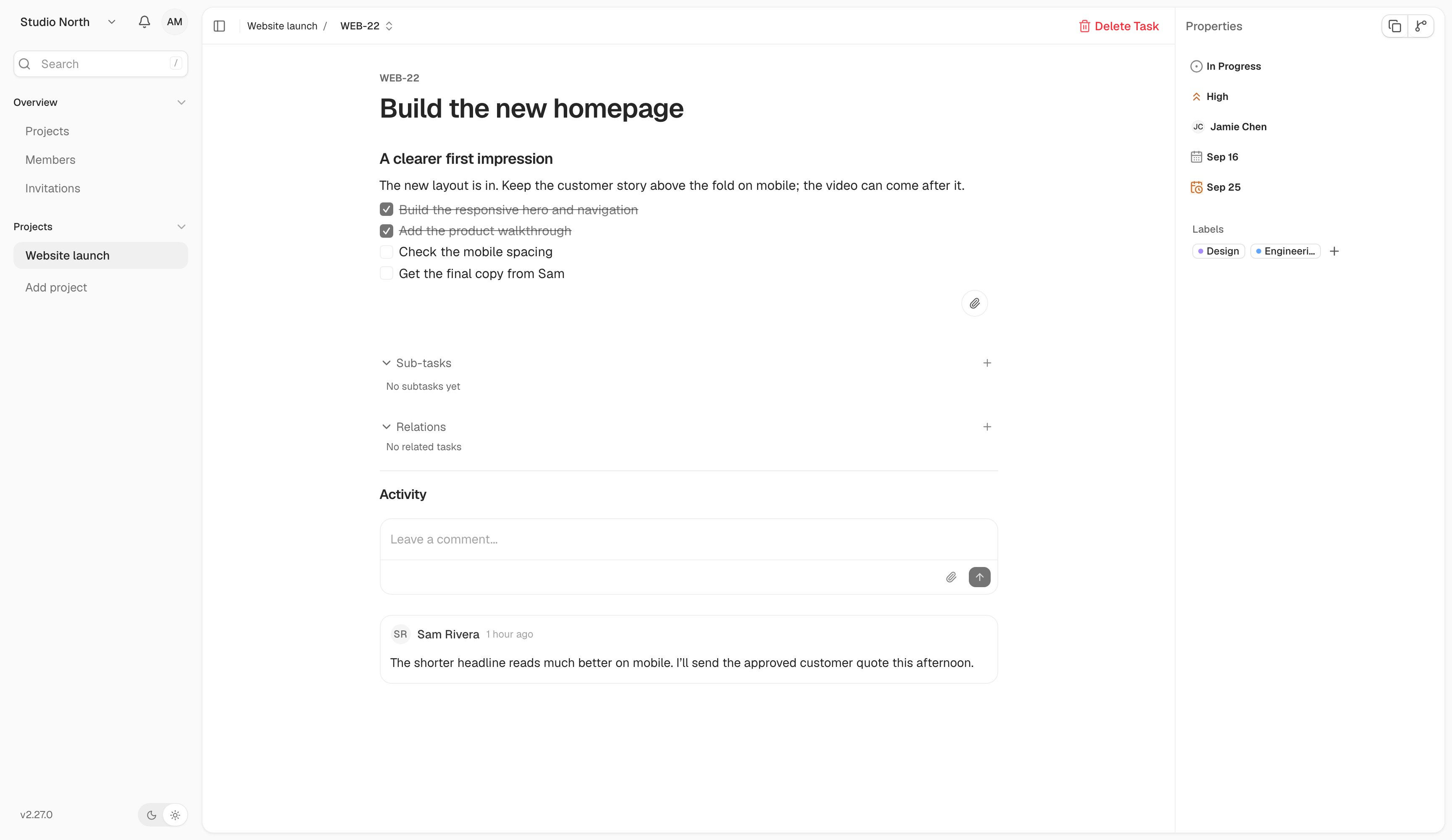
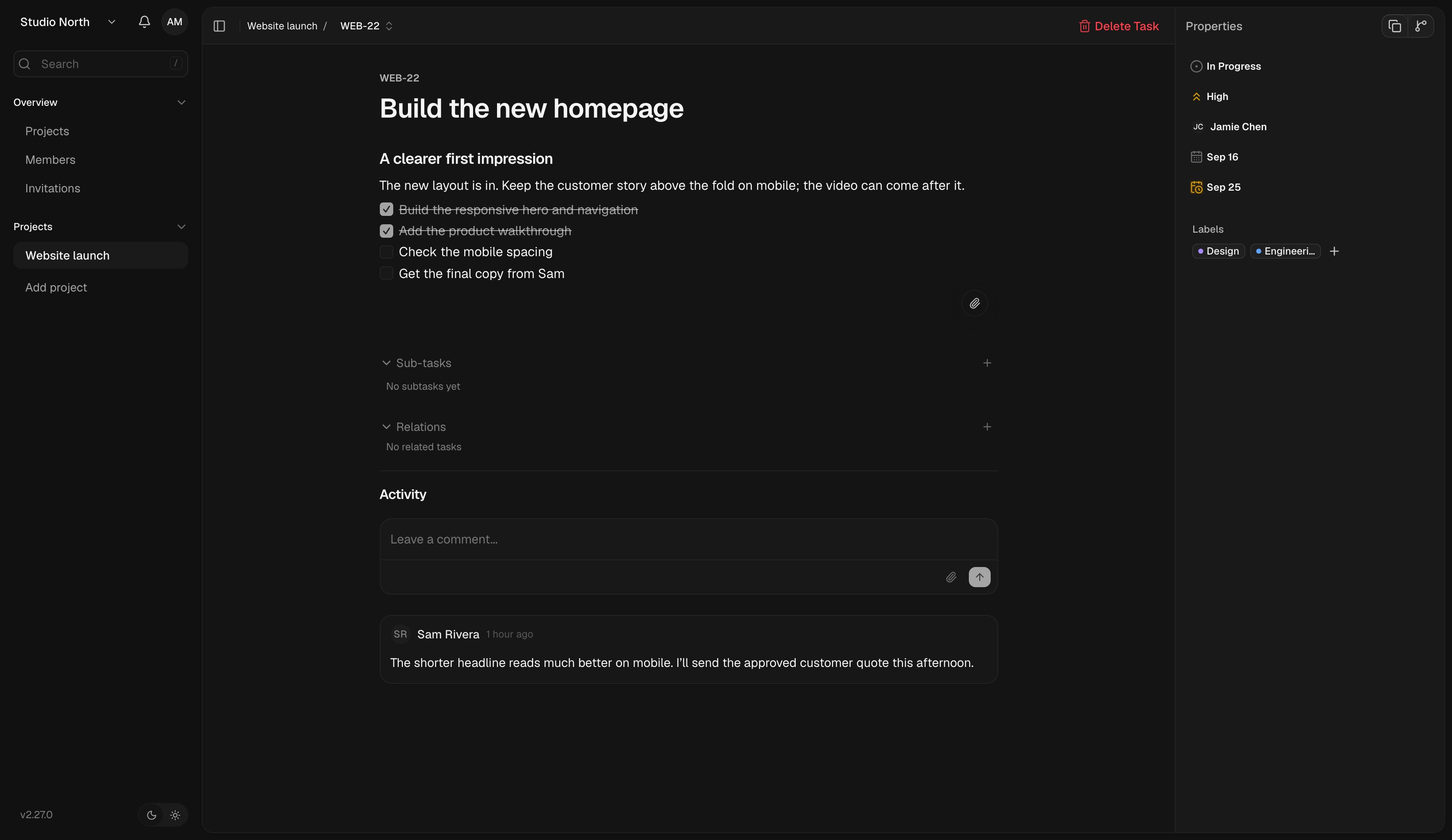
Comments stay alongside the task description and properties.