Open a project and choose Tasks. To change how the same work is displayed, open Display at the top right and pick a layout: Board, List, Calendar, or Gantt. Most actions have a keyboard shortcut: for example C creates a task, G then I opens your inbox, and ⌘B switches between Board and List. Press ? (or ⌘/, Ctrl+/ on Windows and Linux) anywhere to see and search every shortcut.

Add a task

On the board, choose + in the column where the task belongs. Give it a title that describes the work, then open the task to add details. A title such as “Fix the mobile navigation” is easier to act on than “Mobile issues.” Use the description for context, links, and a checklist of smaller steps.

Move work on the board

Drag a task to another column when its status changes. You can also change its status inside the task.
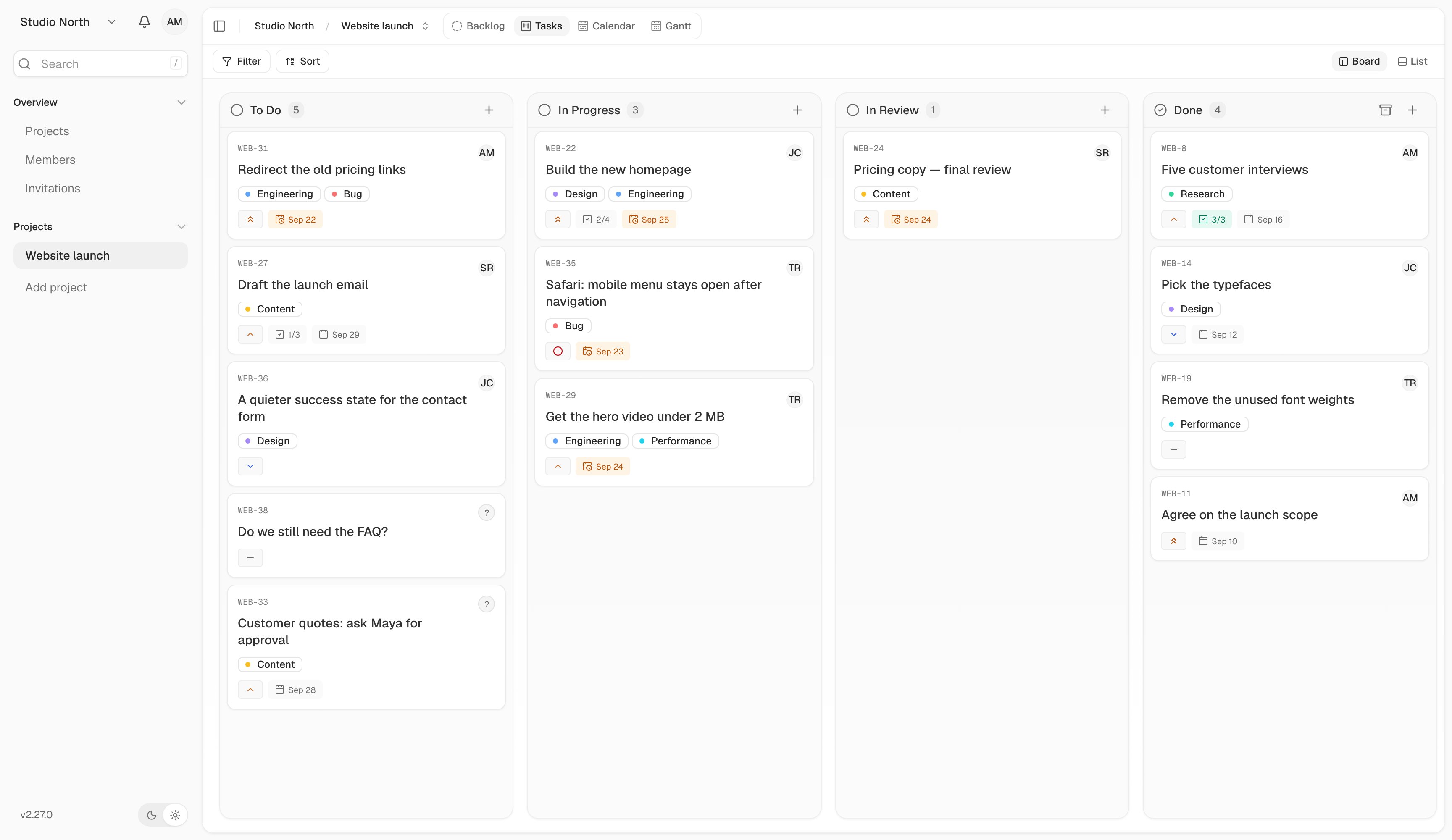
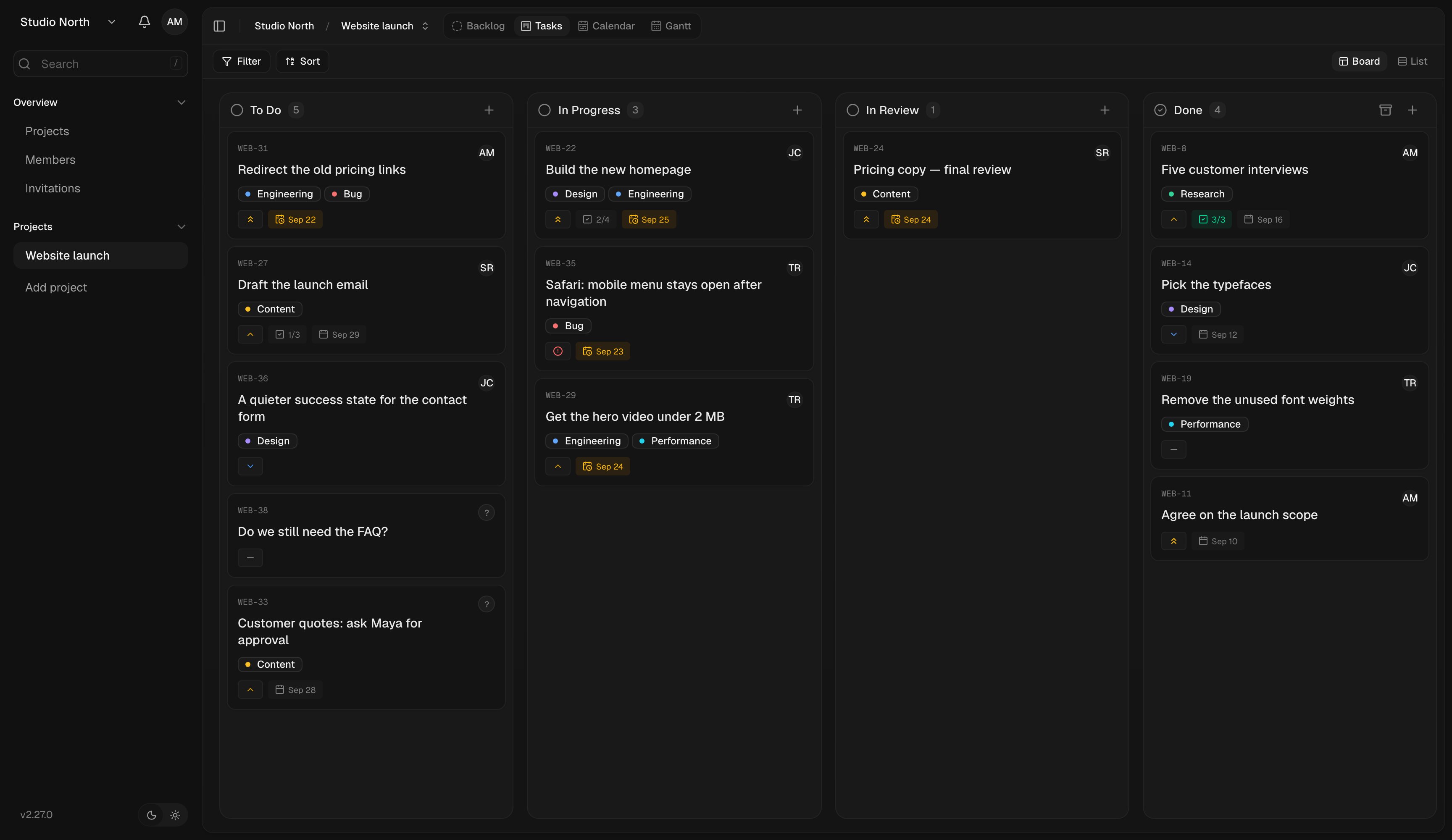
Board view groups tasks by status. Cards show labels, priority, assignees, and dates.Board view groups tasks by status. Cards show labels, priority, assignees, and dates.

Board view groups tasks by status. Cards show labels, priority, assignees, and dates.

Your project’s workflow settings determine the columns and which ones count as done. Move a completed task back to an active column to reopen it.

Scan work in List

Switch the layout to List when you want to compare task properties without opening every task.
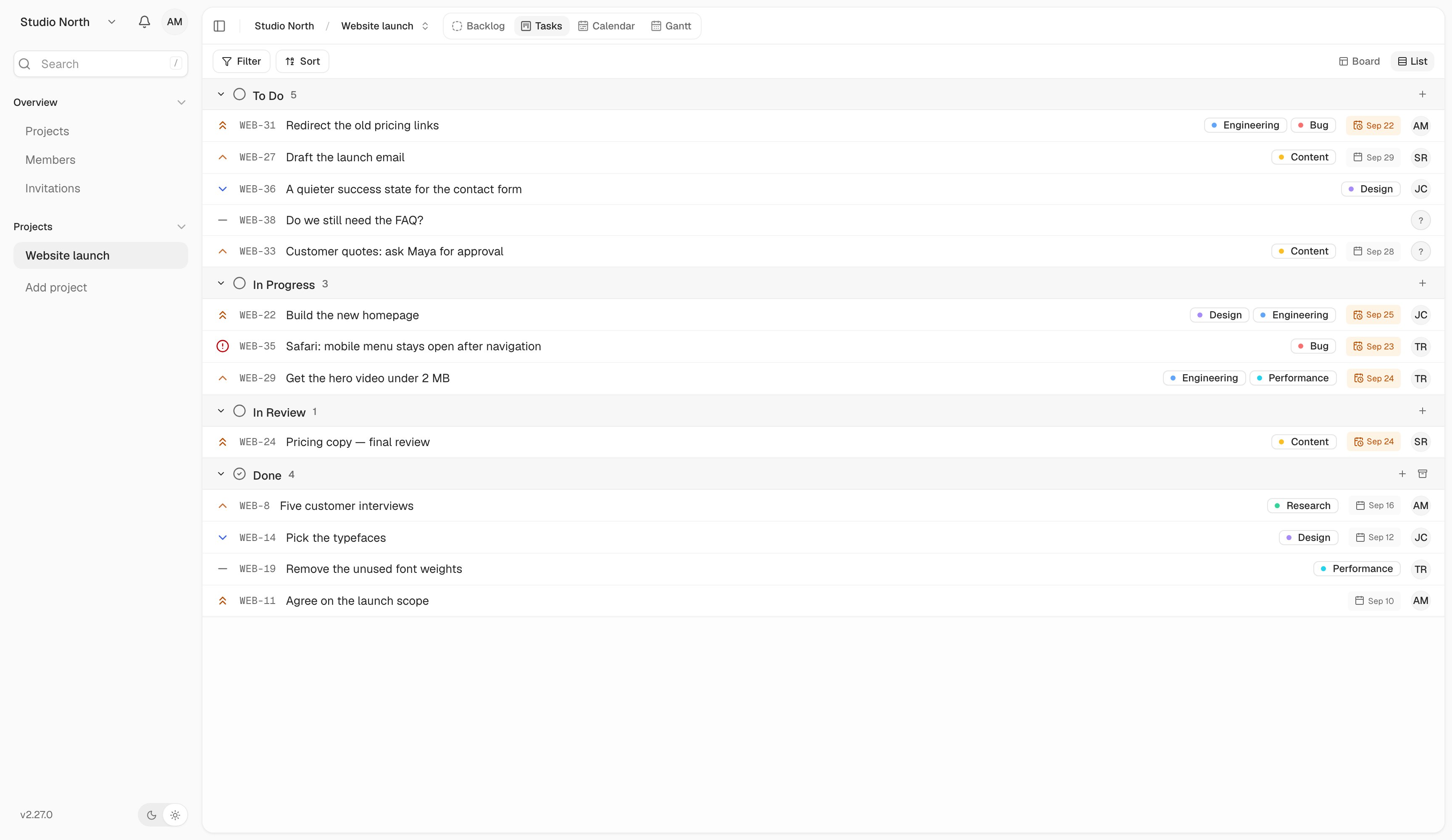
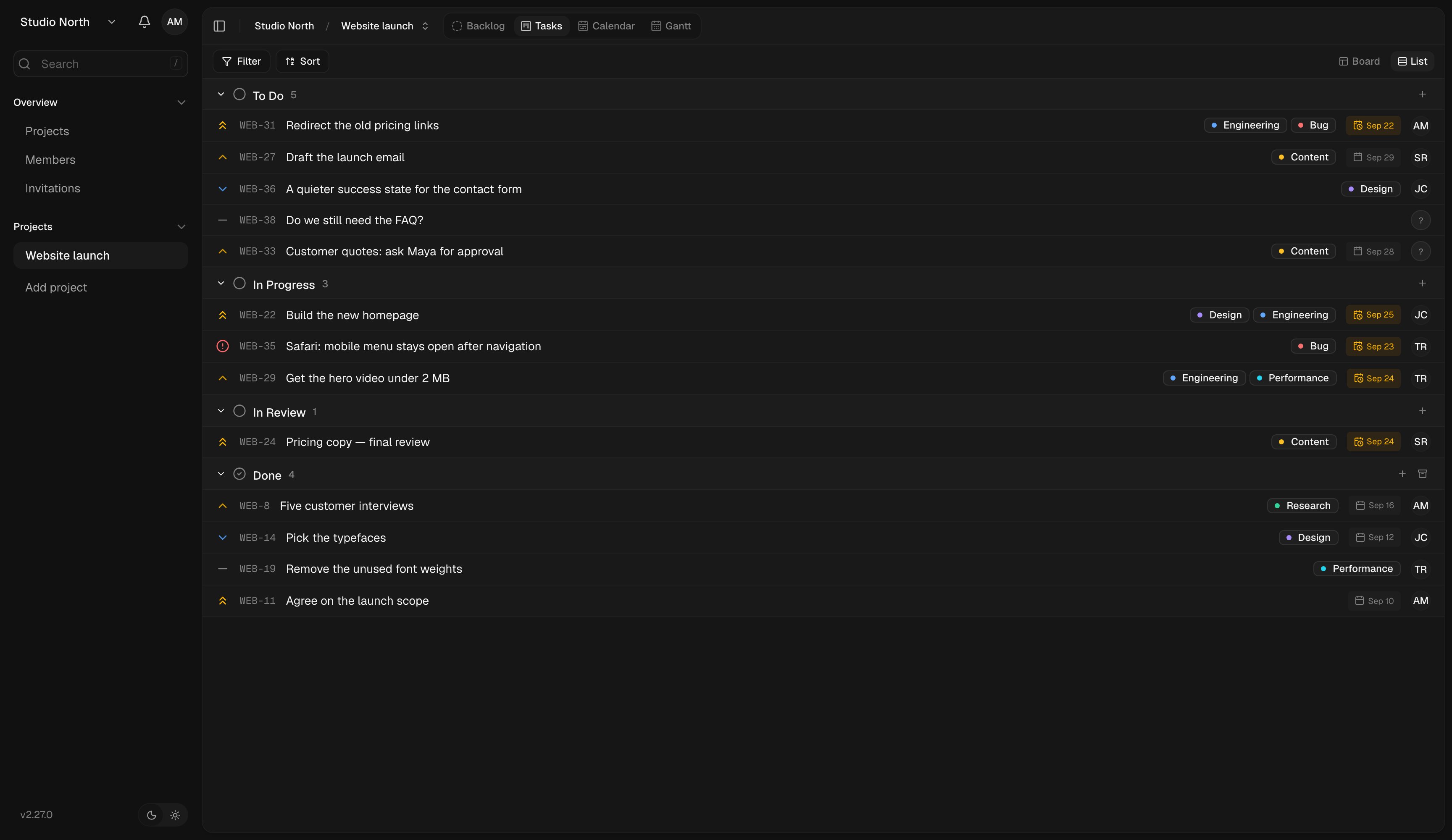
List view shows the same project tasks in rows for faster scanning.List view shows the same project tasks in rows for faster scanning.

List view shows the same project tasks in rows for faster scanning.

Find and filter work

Use the search icon, or press ⌘F (Ctrl+F on Windows and Linux), to find tasks by title, description, or task number. Use Filter to narrow the view by status, assignee, priority, labels, due date, or custom fields. Hover a property to pick its values, or type in Add filter… to search every value at once. Each filter appears as a chip above the tasks:
  • Click the operator, such as is, to switch it to is not and hide matching tasks instead.
  • Click the values to change them.
  • Choose × to remove the filter, or Clear all to remove every filter.
Filters are saved for each project and apply to every layout. The count next to Tasks shows how many tasks match. If a task seems to have disappeared, clear your filters and check the backlog before creating another one. Open Display to sort tasks and choose which details appear on cards and rows. Filled custom fields show as small chips on cards and rows; hover one to see the field name. Under Fields, turn off any field you don’t want there. These choices are saved in your browser and only affect your view.

Add the details people need

Open a task to edit its description and properties. Use Open in full page from the task panel when you want more space.
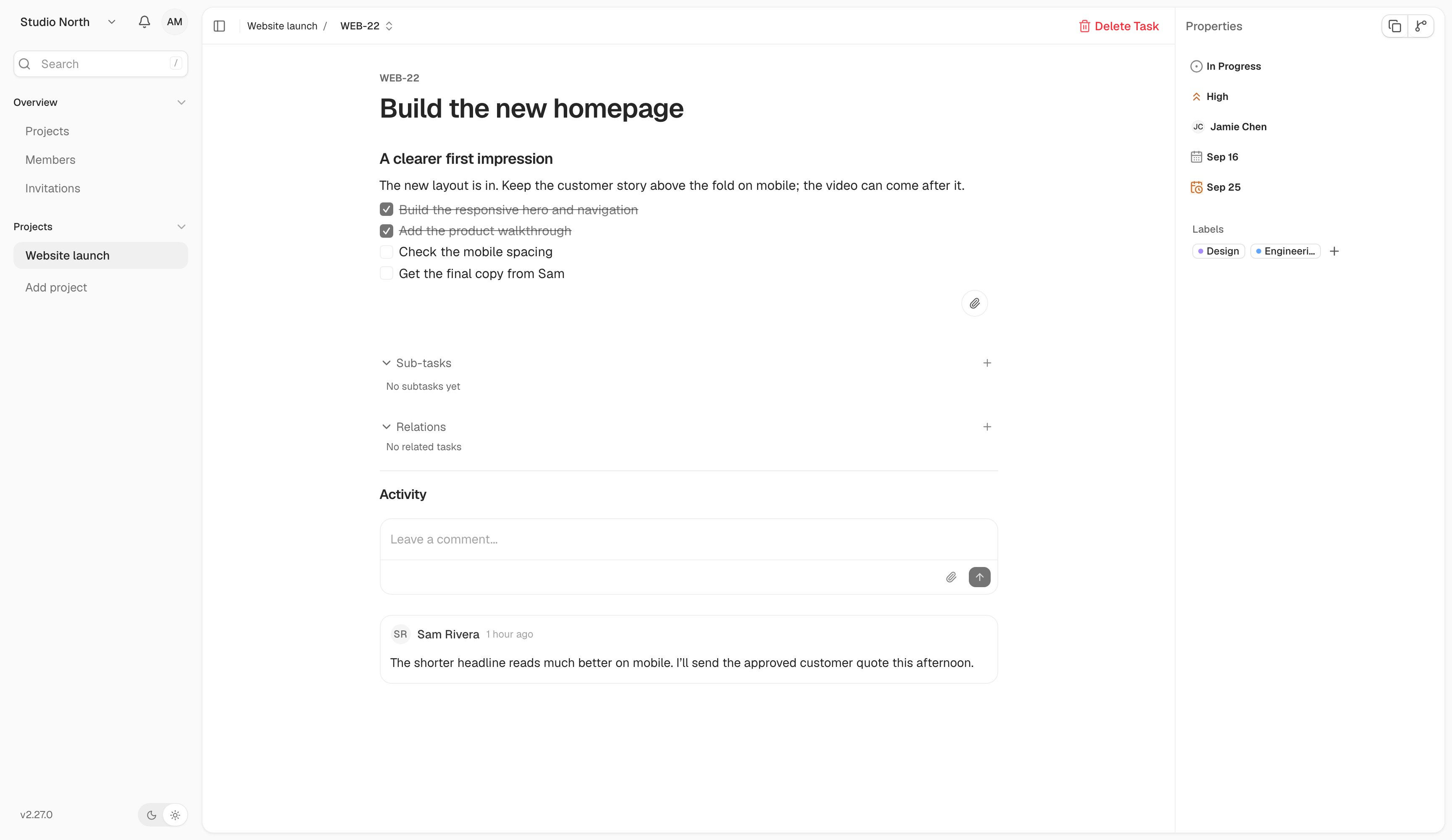
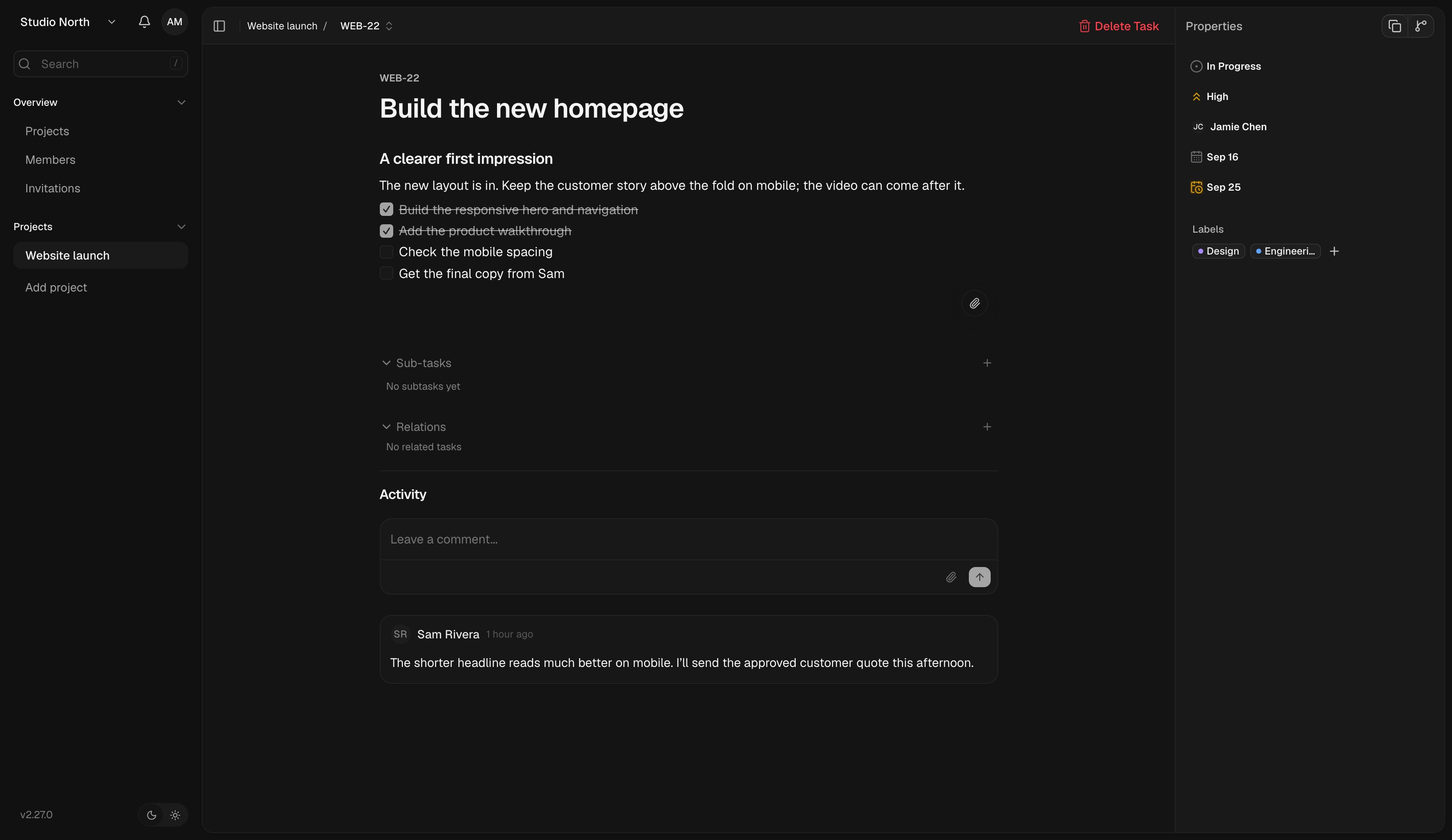
The full task page keeps the description, properties, and conversation together.The full task page keeps the description, properties, and conversation together.

The full task page keeps the description, properties, and conversation together.

  • Assignee: choose the person responsible for the next step. Clear it to leave the task unassigned.
  • Priority: show what needs attention first. A task can have no priority.
  • Dates: add start and due dates when the work has a schedule.
  • Labels: group related work across projects. Removing a label from one task does not delete the workspace label.
  • Comments: ask questions and record decisions where everyone following the task can find them.
Use the attachment button, paste, or drag a file into the editor to add supporting material. Images appear inline; other files appear as attachments. On self-hosted instances, an operator must configure file storage first.

Break work into subtasks

In the task’s Sub-tasks section, enter a title and choose Add. Each subtask is a task with its own status and assignee. Open it to add more detail. The Subtask of link takes you back to its parent. Use checkboxes in the description for a simple checklist. Use subtasks when each piece needs its own owner or progress tracking. Open Relations and use the add button to find another task. Choose Related for a connection or Blocks when the current task must be resolved before the other one. The other task shows the inverse blocked by relationship. Use Remove relation to unlink the tasks without deleting either task.

Fill in custom fields

If your project defines extra fields, they appear under Fields in the task’s Properties sidebar. In the side panel and when you create a task, they show as chips below status and priority. Click a field to set its value; a checkbox field toggles in place. Fields can hold text, numbers, dates, one or several dropdown choices, or a checkbox. A project manager defines the fields in Custom fields settings. Required fields always keep a value, so they have no Clear option. If one is still empty when you create a task, Kaneo highlights it and tells you how many are missing.

Delete a task

Use Delete Task only when you want to remove the task, rather than mark it done. Check the confirmation before proceeding. If deletion or assignment is unavailable, your workspace role may not permit it. For work you want to keep but are not ready to start, use the backlog.