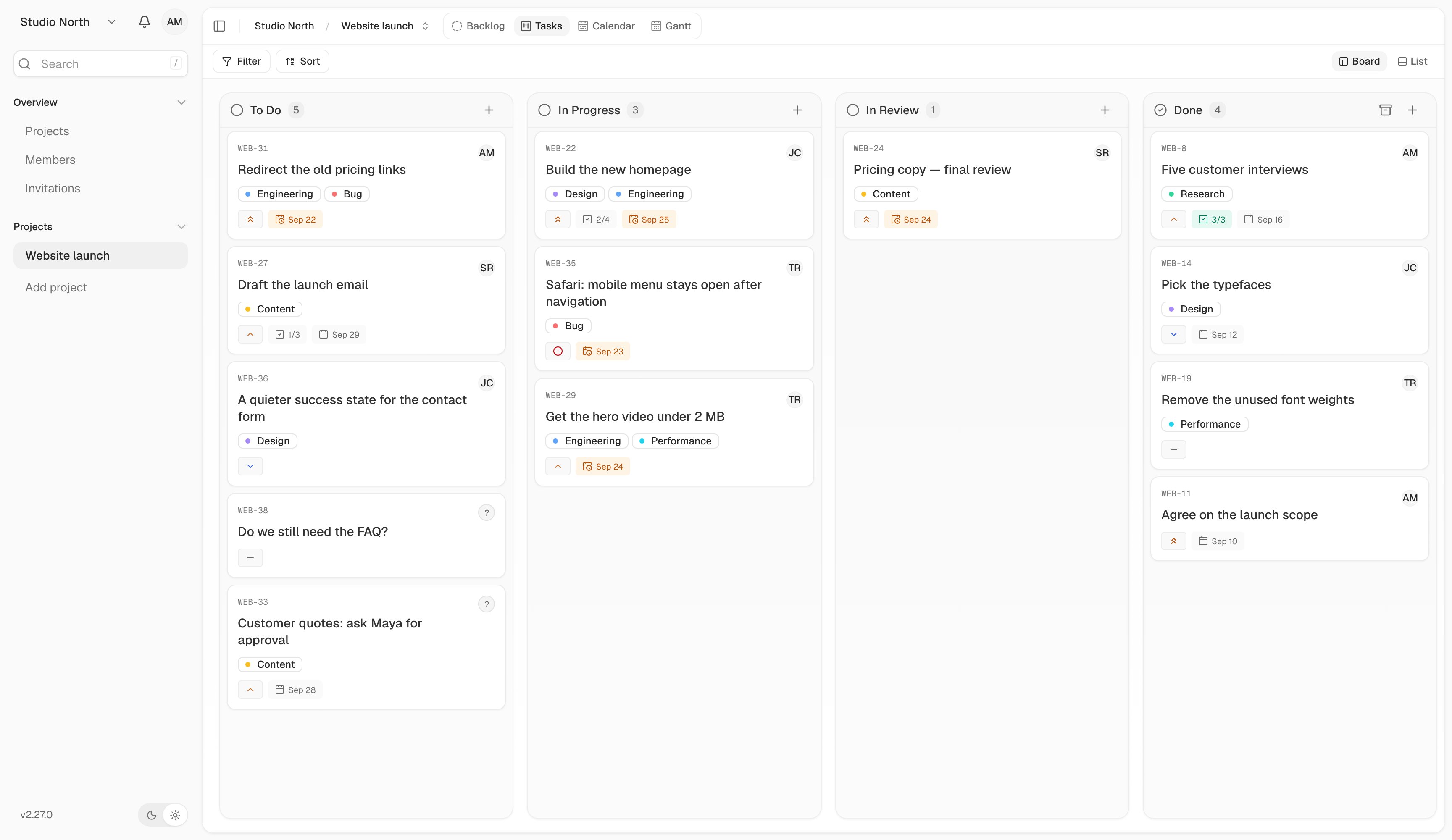
A workspace contains members, projects, and shared labels. Use one workspace for people who should work together. Create separate workspaces when access needs to stay separate. Projects divide the work inside a workspace. A website launch, a support queue, and an internal roadmap can each be a project.

Create a workspace

Use the workspace menu at the top of the sidebar to create a workspace. Give it a name your teammates will recognize. You become its owner. If you received an invitation, accept it instead of creating another workspace for the same team.

Create a project

  1. Switch to the right workspace.
  2. Choose Add project in the sidebar, or create one from Projects.
  3. Enter its name and submit the form.
  4. Open the project from the sidebar.
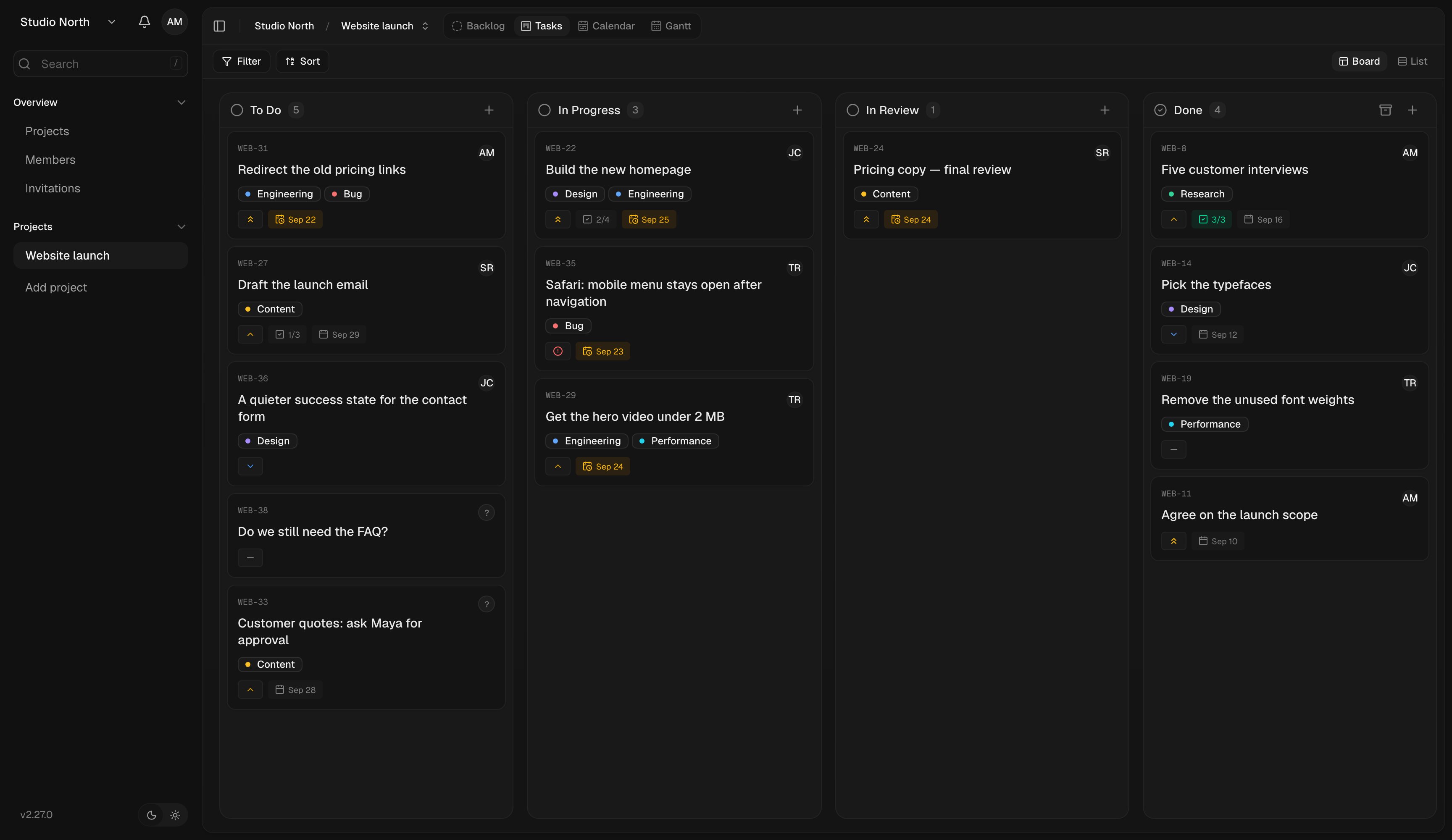
The workspace menu is at the top left. Projects appear below it in the sidebar.The workspace menu is at the top left. Projects appear below it in the sidebar.

The workspace menu is at the top left. Projects appear below it in the sidebar.

Choose a view

Switch between Tasks and Backlog at the top of a project. Inside Tasks, choose a layout from Display. Changing views does not create a second copy of a task.

Change settings

Open Settings → Projects and select your project to manage its details, workflow, and integrations. Workspace settings hold shared details, labels, and roles. The controls you see depend on your permissions. If you cannot create a project or change its settings, ask a workspace admin to check your role. Next, add some tasks or invite your team.